> ## Documentation Index
> Fetch the complete documentation index at: https://lightdash-mintlify-0fc6449e.mintlify.site/llms.txt
> Use this file to discover all available pages before exploring further.
# Review requests
> Submit charts and dashboards from your personal space for review, promotion, and verification
 Review requests give people who build in their [personal space](/explore/default-user-spaces) a built-in path to share their work. Instead of DMing someone with edit access or circulating links to personal-space content, a user submits their chart or dashboard for review. A reviewer checks it, and on approval the content moves into a shared space — optionally picking up a [verified badge](/explore/verified-content) at the same time.
This closes the loop on personal spaces: create → request review → approve → promote and verify.
Review requests are available on all paid plans. On self-hosted deployments you'll need version 2.209.0 or later. The feature builds on [default user spaces](/explore/default-user-spaces), so make sure those are enabled for the project first.
## Set up review requests
There is no switch to flip. Once [default user spaces](/explore/default-user-spaces) are enabled for a project, everyone with a personal space can request a review, and requests go to whoever can edit the target space. Project admins decide who reviews and where new requests are announced under **Project settings** → **Review requests**. The same panel opens from **Review settings** on the Review requests page.
Review requests give people who build in their [personal space](/explore/default-user-spaces) a built-in path to share their work. Instead of DMing someone with edit access or circulating links to personal-space content, a user submits their chart or dashboard for review. A reviewer checks it, and on approval the content moves into a shared space — optionally picking up a [verified badge](/explore/verified-content) at the same time.
This closes the loop on personal spaces: create → request review → approve → promote and verify.
Review requests are available on all paid plans. On self-hosted deployments you'll need version 2.209.0 or later. The feature builds on [default user spaces](/explore/default-user-spaces), so make sure those are enabled for the project first.
## Set up review requests
There is no switch to flip. Once [default user spaces](/explore/default-user-spaces) are enabled for a project, everyone with a personal space can request a review, and requests go to whoever can edit the target space. Project admins decide who reviews and where new requests are announced under **Project settings** → **Review requests**. The same panel opens from **Review settings** on the Review requests page.
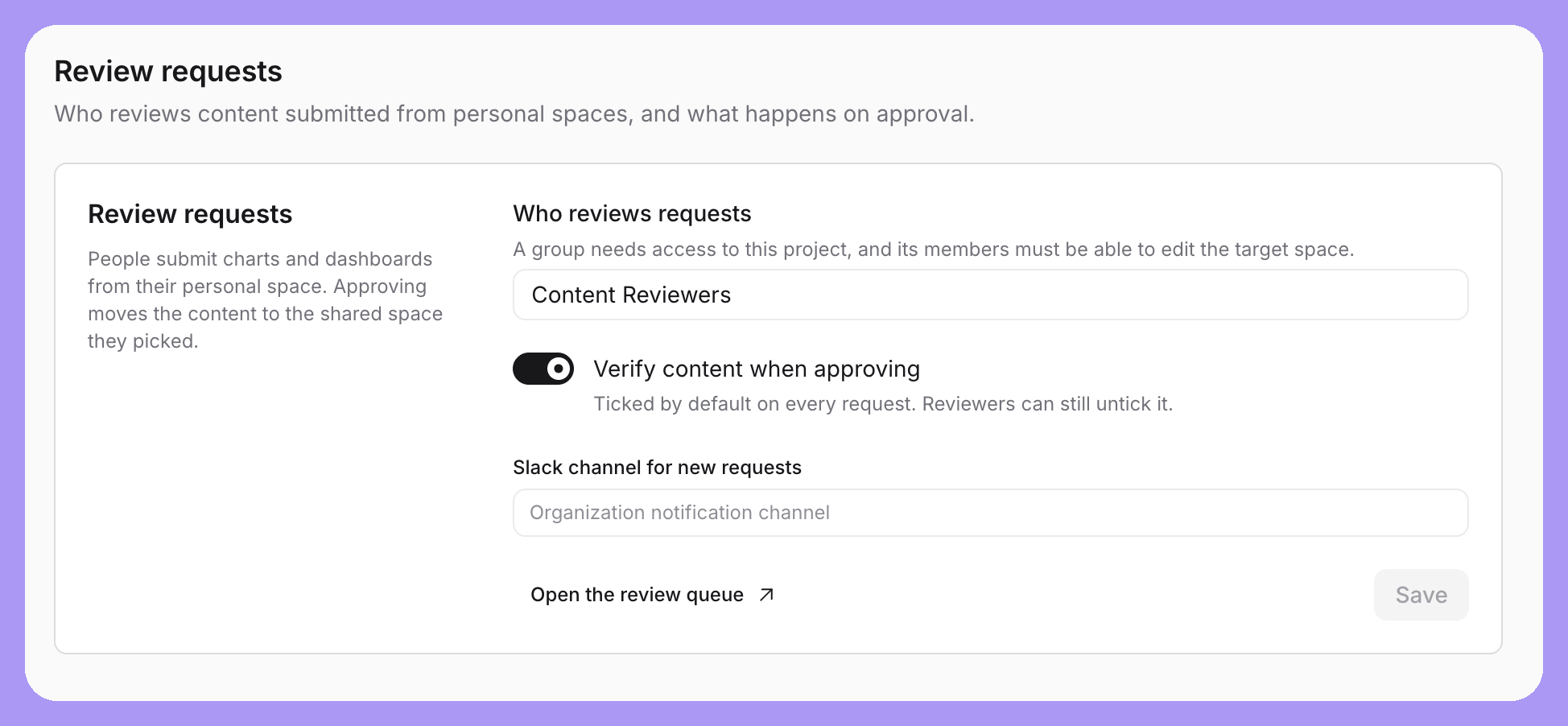 1. **Choose who reviews requests.** Pick **Editors of the target space** to route each request to the editors and admins of the space it's going to, or pick an [organization group](/workspace-admin/manage-groups) to send every request to the same people regardless of target space. The group needs access to the project, and its members still need edit access to the target space, since approval moves content into it.
2. **Set the default for verification.** With **Verify content when approving** on, the **Verify on approve** box is ticked on every request. Reviewers can untick it for individual requests.
3. **Pick a Slack channel for new requests.** New requests post to this channel. Leave it empty to use the organization's notification channel from the [Slack integration](/integrations/slack#select-a-notification-channel). Approvals and rejections go to the requester as a Slack direct message. This field only appears once Slack is connected.
4. **Save**, then use **Open the review queue** to see requests as they arrive.
Reviewers and requesters are also notified in Lightdash and by email, so Slack is optional.
## Requesting a review
Anyone with content in their personal space can request a review:
1. Open the chart or dashboard in your personal space
2. Choose **Request review** from the **...** menu (also available from the content's row in listings)
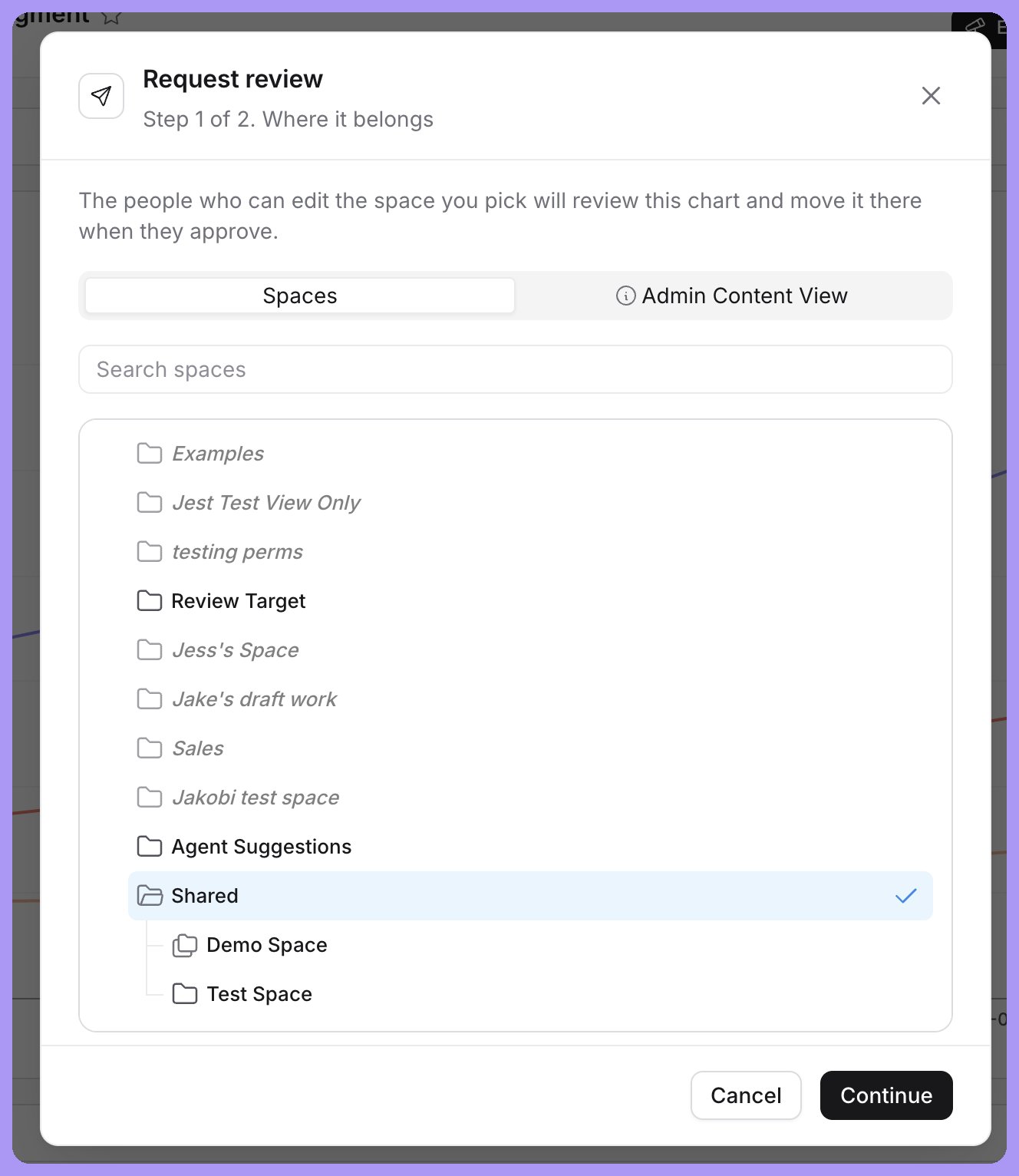
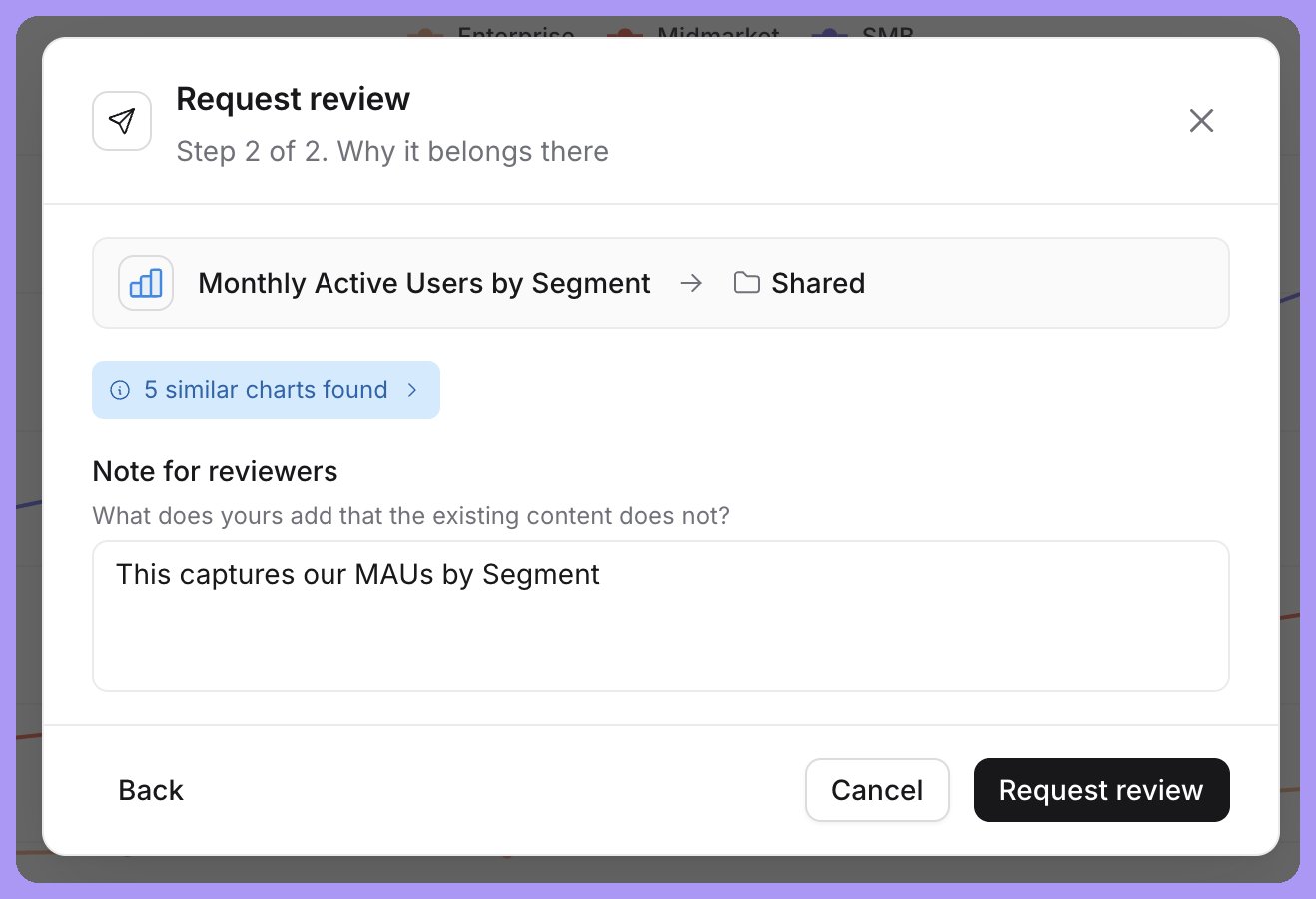
3. Pick the shared space the content should move into. The target must be a shared space in the same project, and you need at least view access to it.
4. Add a note for reviewers — what it shows, and who it's for
5. Submit the request
1. **Choose who reviews requests.** Pick **Editors of the target space** to route each request to the editors and admins of the space it's going to, or pick an [organization group](/workspace-admin/manage-groups) to send every request to the same people regardless of target space. The group needs access to the project, and its members still need edit access to the target space, since approval moves content into it.
2. **Set the default for verification.** With **Verify content when approving** on, the **Verify on approve** box is ticked on every request. Reviewers can untick it for individual requests.
3. **Pick a Slack channel for new requests.** New requests post to this channel. Leave it empty to use the organization's notification channel from the [Slack integration](/integrations/slack#select-a-notification-channel). Approvals and rejections go to the requester as a Slack direct message. This field only appears once Slack is connected.
4. **Save**, then use **Open the review queue** to see requests as they arrive.
Reviewers and requesters are also notified in Lightdash and by email, so Slack is optional.
## Requesting a review
Anyone with content in their personal space can request a review:
1. Open the chart or dashboard in your personal space
2. Choose **Request review** from the **...** menu (also available from the content's row in listings)
3. Pick the shared space the content should move into. The target must be a shared space in the same project, and you need at least view access to it.
4. Add a note for reviewers — what it shows, and who it's for
5. Submit the request
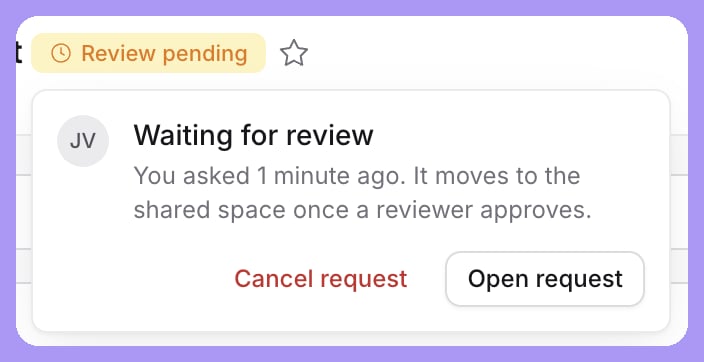
 Each chart or dashboard can have one pending request at a time. While a request is pending, the content shows a **Review pending** badge, and you can cancel the request yourself and resubmit later.
 Submitting a dashboard brings the personal-space charts its tiles use along with it — they move together on approval, and charts saved inside the dashboard follow it automatically.
### Similar content is flagged before you submit
When you pick a target space, Lightdash checks whether similar content already exists in the project's shared spaces and shows you the matches — verified matches first — before you submit. If the dashboard that answers your question already exists, you'll find it here instead of shipping a duplicate. Reviewers see the same matches next to the request, so duplicates get caught even if the requester submits anyway.
Submitting a dashboard brings the personal-space charts its tiles use along with it — they move together on approval, and charts saved inside the dashboard follow it automatically.
### Similar content is flagged before you submit
When you pick a target space, Lightdash checks whether similar content already exists in the project's shared spaces and shows you the matches — verified matches first — before you submit. If the dashboard that answers your question already exists, you'll find it here instead of shipping a duplicate. Reviewers see the same matches next to the request, so duplicates get caught even if the requester submits anyway.
 ## Reviewing a request
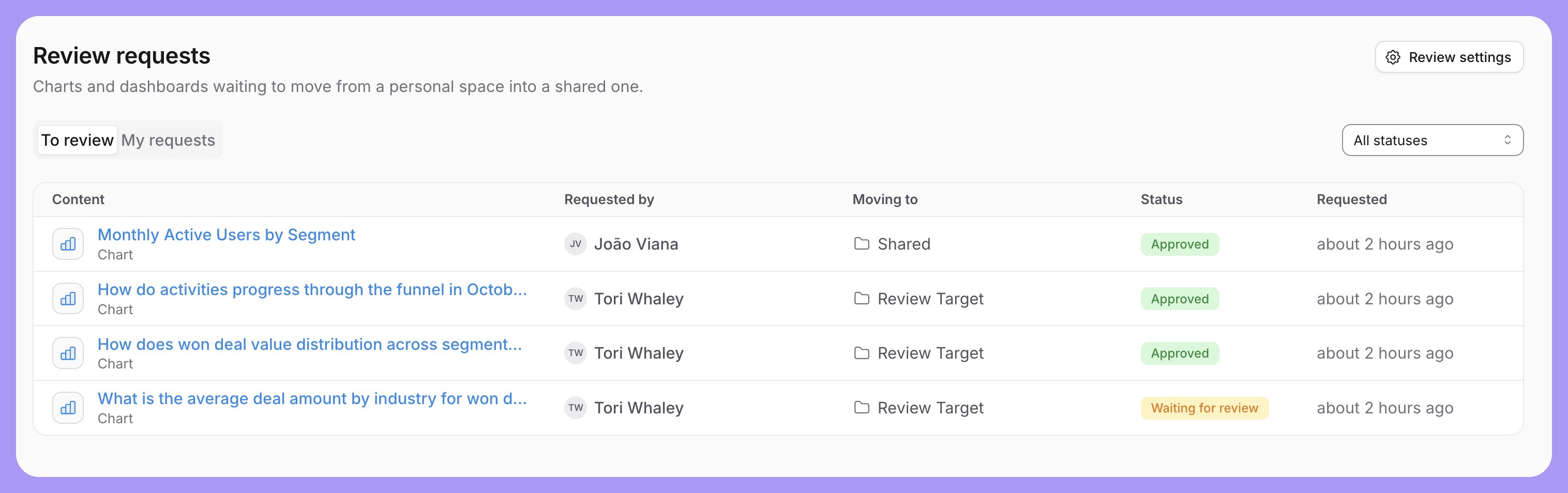
Reviewers find pending requests under **Browse** → **Review requests**, and get notified when a new request comes in — in Lightdash, by email, and in Slack if your organization has the [Slack integration](/integrations/slack) set up. Only the reviewers chosen in [Review settings](#set-up-review-requests) are notified, and the requester is never one of them.
## Reviewing a request
Reviewers find pending requests under **Browse** → **Review requests**, and get notified when a new request comes in — in Lightdash, by email, and in Slack if your organization has the [Slack integration](/integrations/slack) set up. Only the reviewers chosen in [Review settings](#set-up-review-requests) are notified, and the requester is never one of them.
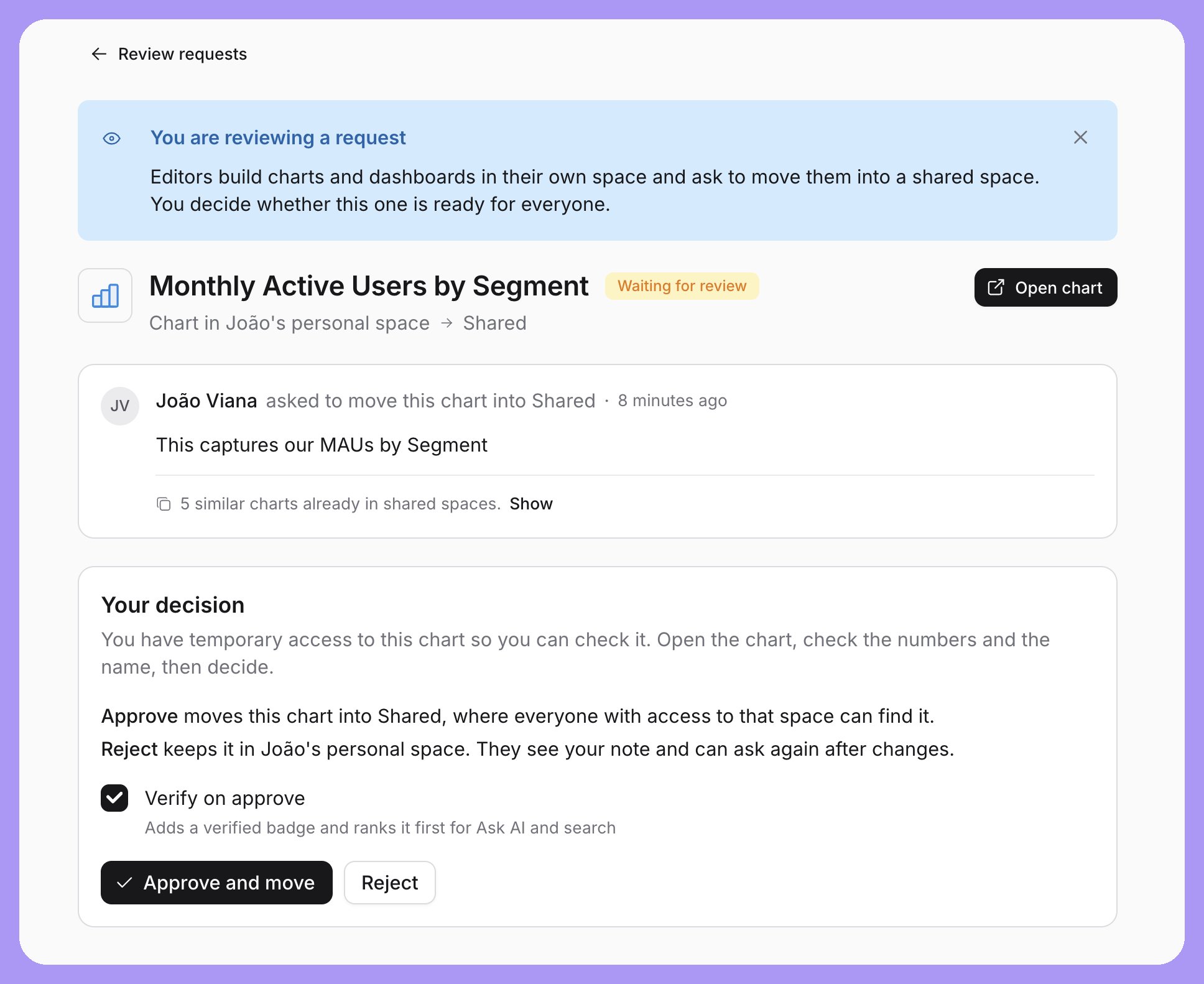
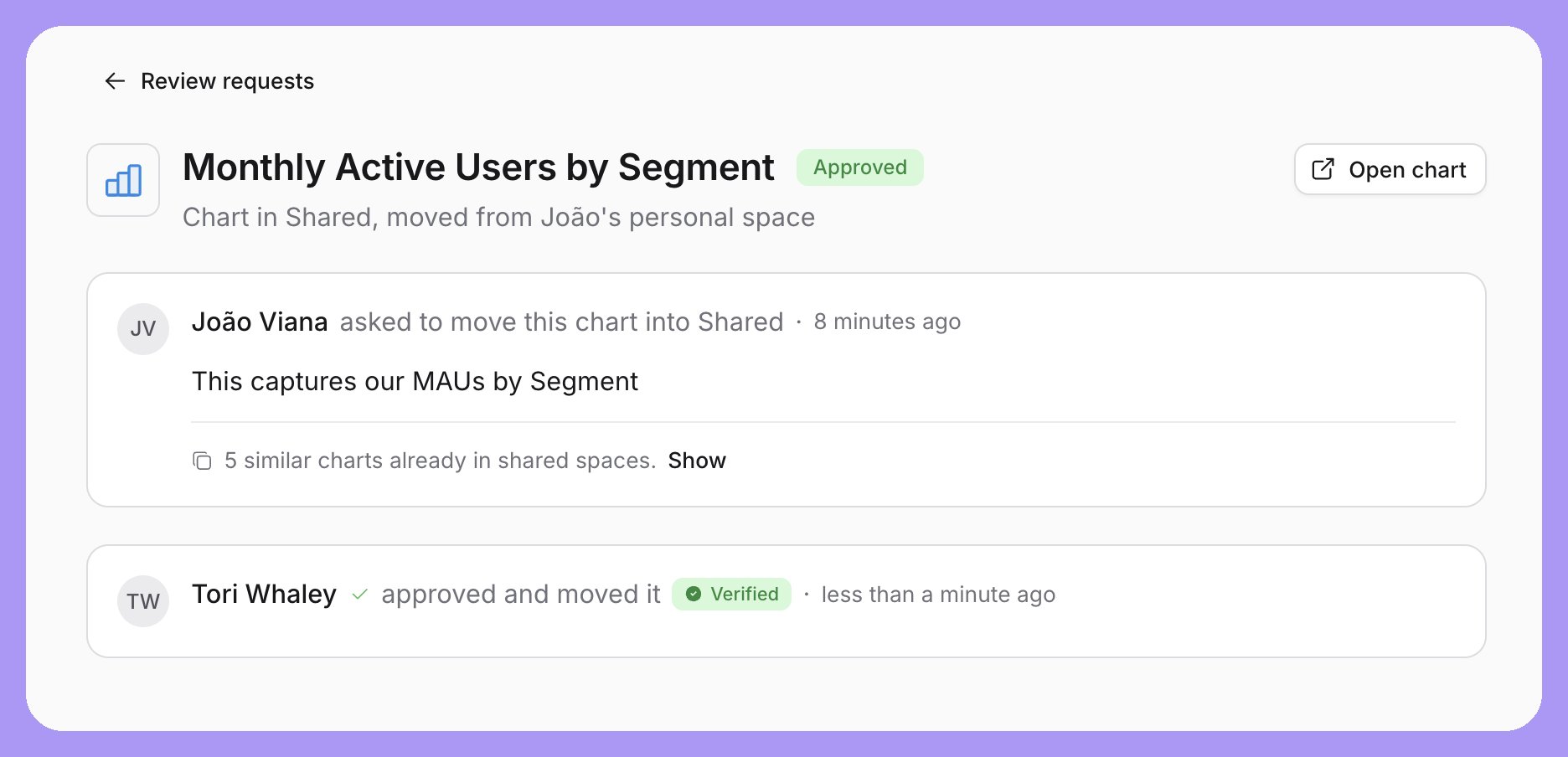
 Reviewers get temporary access to the content while the request is pending, so they can open the chart, check the numbers and the name, and then decide:
* **Approve and move** moves the content into the target space, where everyone with access to that space can find it. Tick **Verify on approve** to add the verified badge as part of the same step — it ranks the content first for Ask AI and search, exactly as if you'd verified it by hand.
* **Reject** keeps the content in the requester's personal space. The requester sees your note and can ask again after making changes.
Every request keeps its history — who asked, who decided, and when — so there's an audit trail for how content became shared or verified.
## Review requests and verified content
Reviewers get temporary access to the content while the request is pending, so they can open the chart, check the numbers and the name, and then decide:
* **Approve and move** moves the content into the target space, where everyone with access to that space can find it. Tick **Verify on approve** to add the verified badge as part of the same step — it ranks the content first for Ask AI and search, exactly as if you'd verified it by hand.
* **Reject** keeps the content in the requester's personal space. The requester sees your note and can ask again after making changes.
Every request keeps its history — who asked, who decided, and when — so there's an audit trail for how content became shared or verified.
## Review requests and verified content
 **Verify on approve** is the bridge between review requests and [verified content](/explore/verified-content). Teams that use verification as their trust signal can make review the only road to it: users build freely in their personal spaces, and everything that reaches shared spaces has been looked at — and badged — by a reviewer.
To keep verified content locked down after promotion, pair this with the **Edit or delete verified charts and dashboards** (`manage:VerifiedContent`) scope on [custom roles](/workspace-admin/custom-roles), so promoted-and-verified content can't be edited by the general editor population.
**Verify on approve** is the bridge between review requests and [verified content](/explore/verified-content). Teams that use verification as their trust signal can make review the only road to it: users build freely in their personal spaces, and everything that reaches shared spaces has been looked at — and badged — by a reviewer.
To keep verified content locked down after promotion, pair this with the **Edit or delete verified charts and dashboards** (`manage:VerifiedContent`) scope on [custom roles](/workspace-admin/custom-roles), so promoted-and-verified content can't be edited by the general editor population.